
Installing the Modpack with HMCL
This guide will show you how to install Arcomua Modpack using HMCL.
Download the Launcher
Click here to go to the launcher download page.
You can find detailed information about the launcher in the HMCL Help Documentation. This guide focuses only on installing the modpack.
This guide uses HMCL 3.6.16.
Online Installation
If you are using HMCL for the first time, click “No Game Account” in the upper-left corner to add a game account. After adding your game account, return to the home page and click “Download” in the left sidebar.
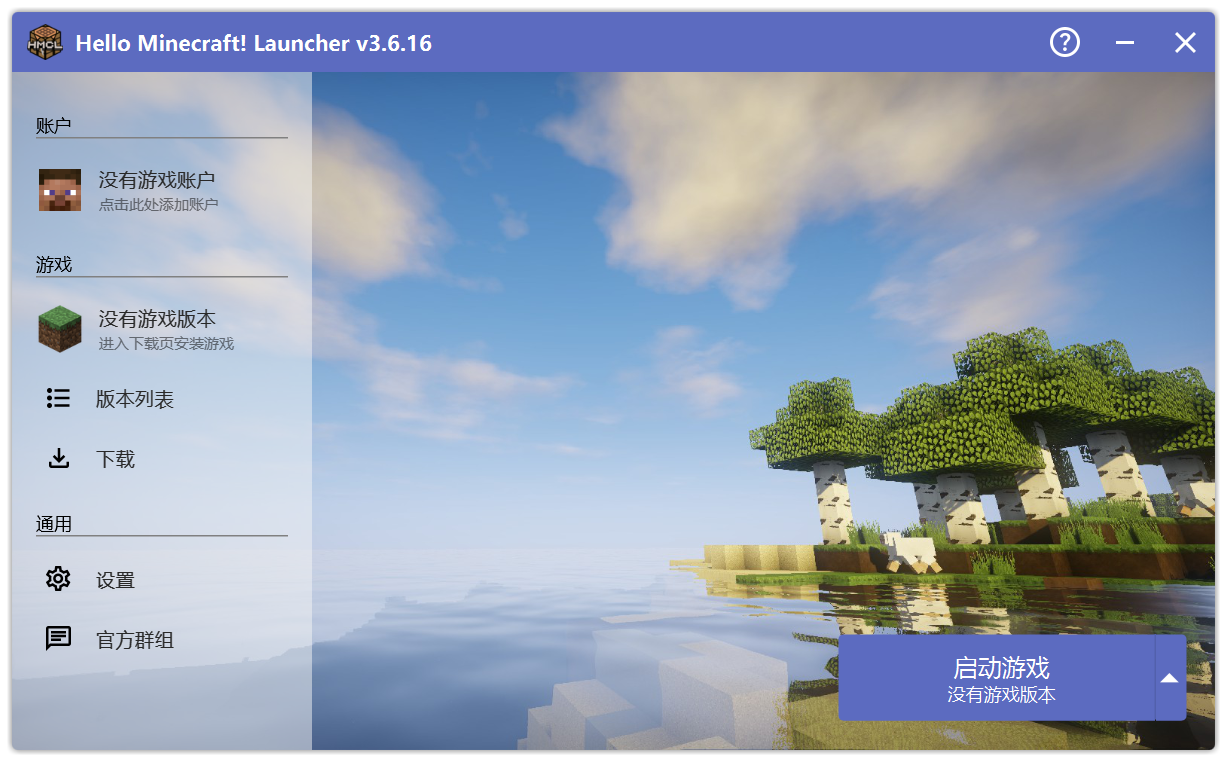
After opening the “Download” page, click “Modpacks” in the left sidebar. On the “Modpacks” page, find “Download Source” at the top, click the white box next to it to open the drop-down menu, and select “Modrinth”.
Click the white box next to “Name”, enter “Arcomua”, and click the “Search” button.
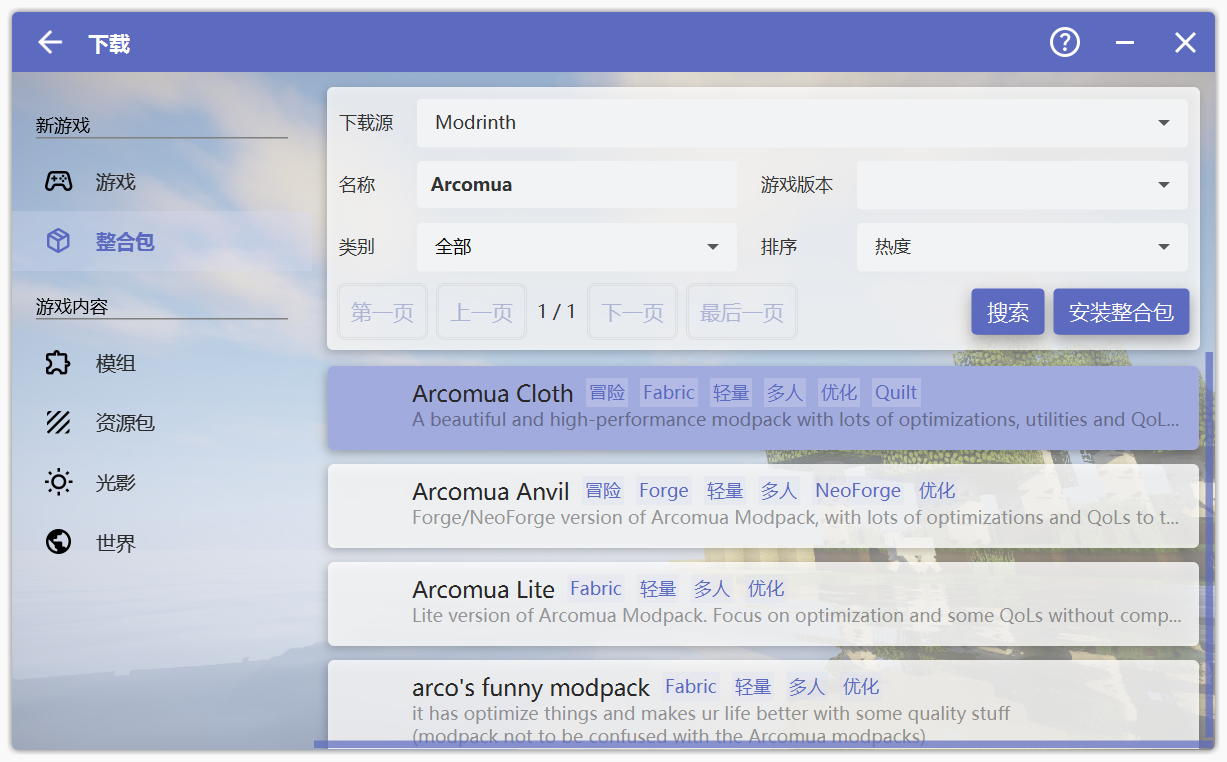
Click the modpack you want to download. On the details page, select a Minecraft version and click the corresponding entry. Select the top entry in the drop-down menu (the top entry is usually the latest version). In the dialog box that appears, click “Install Modpack”.
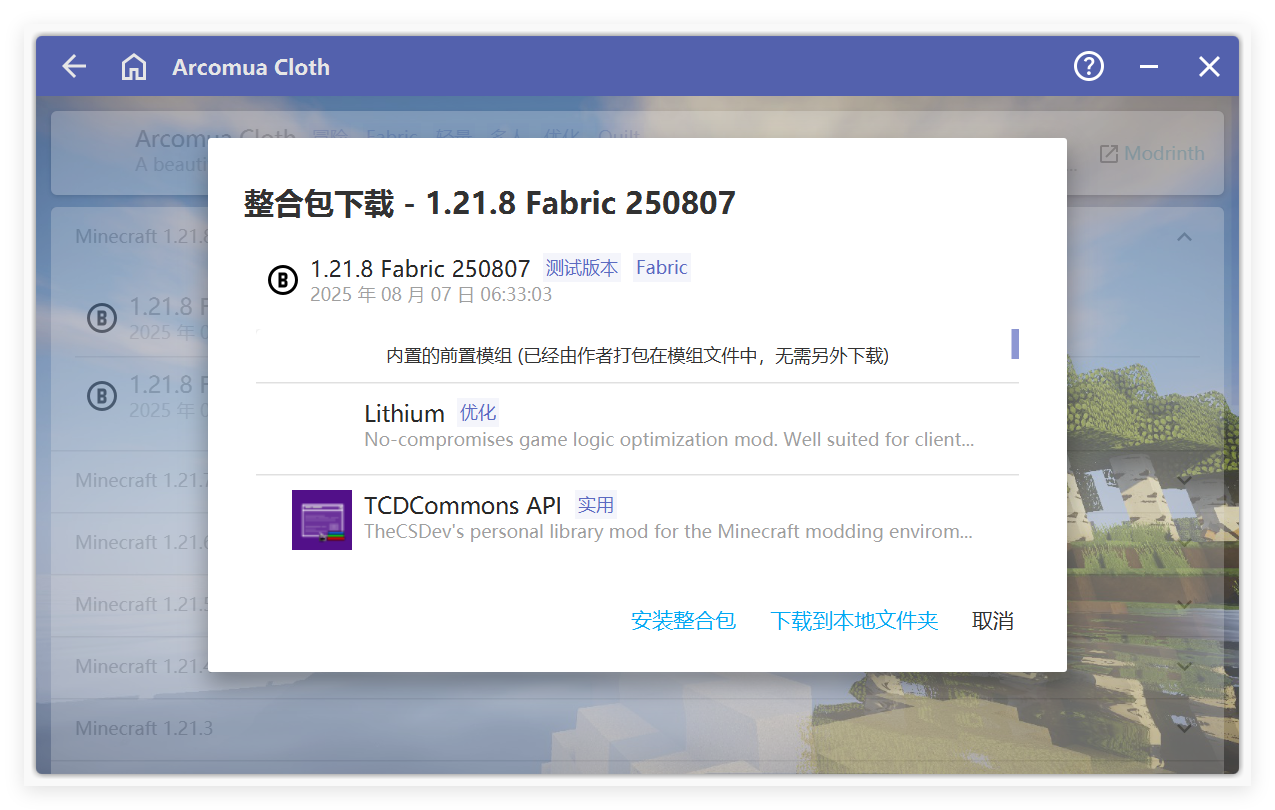
Follow the wizard to install the modpack. Do not exit the wizard, for example by returning to the home page, or the installation will be interrupted.
After the installation is complete, click the small home icon in the upper-left corner of the launcher window to return to the main menu. Then click “Launch Game” in the lower-right corner to play Arcomua Modpack.
If the launcher has downloaded other versions before, you may need to switch to the modpack in “Version List”. Select Arcomua Modpack by clicking the circle to its left, then launch it from the home page.
Tip
If you encounter other issues while using HMCL, please consult the HMCL Help Documentation first.